
Vident iLink400AU: What to Expect and How to Set Up Your Scan Tool
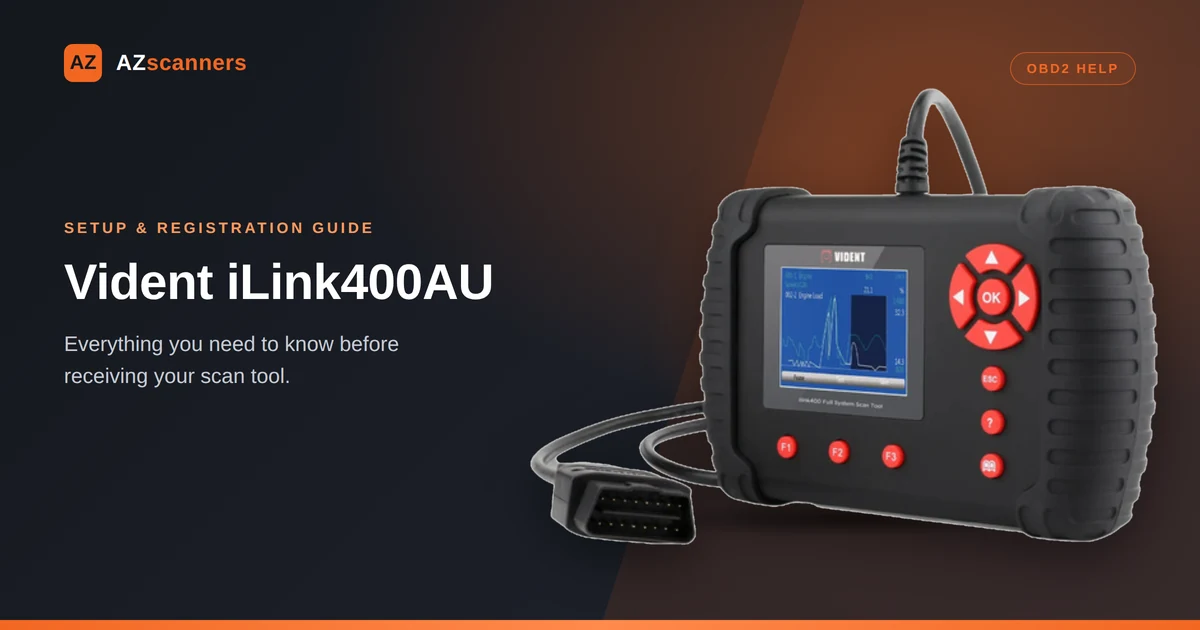
Your iLink400AU comes in two versions, and what you need to do next depends on which one you bought:
- Pre-loaded (Toyota, Holden, or Ford AU) — your vehicle software is already installed. The tool is ready to scan straight out of the box. No setup required.
- Blank unit — no vehicle software installed yet. You’ll need to register the tool and download your first software before you can start scanning (this first download is free).
Either way, registering your tool only takes a few minutes and it’s worth doing — even if yours is pre-loaded and already working. Once registered, you get free updates for your installed software, a record of your unit for warranty support, and the option to add more vehicle brands later.
What you'll need:
- A Windows computer (the registration software, iScanZilla, is Windows-only — see the note below if you’re on a Mac)
- The TF (micro SD) card and USB card reader included in the box
- The scan tool’s serial number and password, printed on the slip of paper inside the box
Step 1: Download and install iScanZilla
Remove the TF card from the scan tool and insert it into the USB card reader from the box, then plug the reader into your computer. The iScanZilla installer should already be on the card — open it and run the installer.
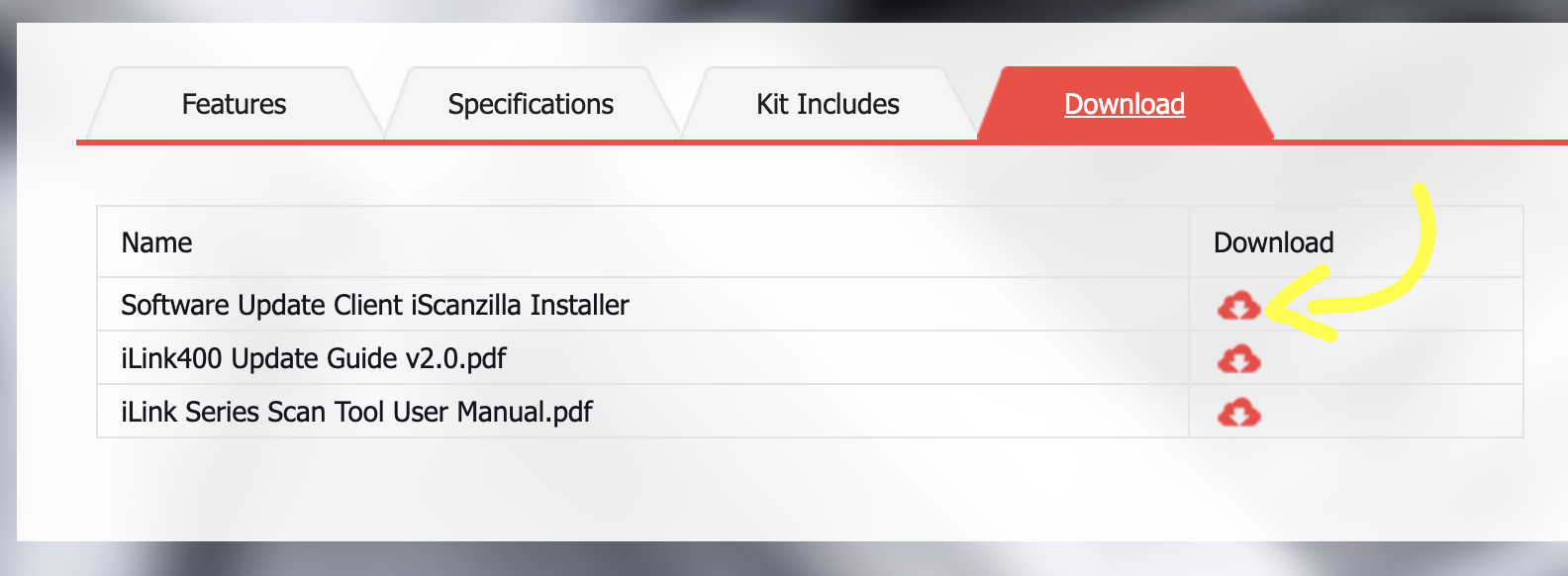
If it’s not on the card, download it directly from Vident: go to videnttech.com, open the Downloads tab, and select Software Update Client iScanZilla Installer.
Note: iScanZilla only runs on Windows. If you’re on a Mac, you’ll need access to a Windows PC (or a Windows virtual machine) to register — the scan tool itself still works fine without it.
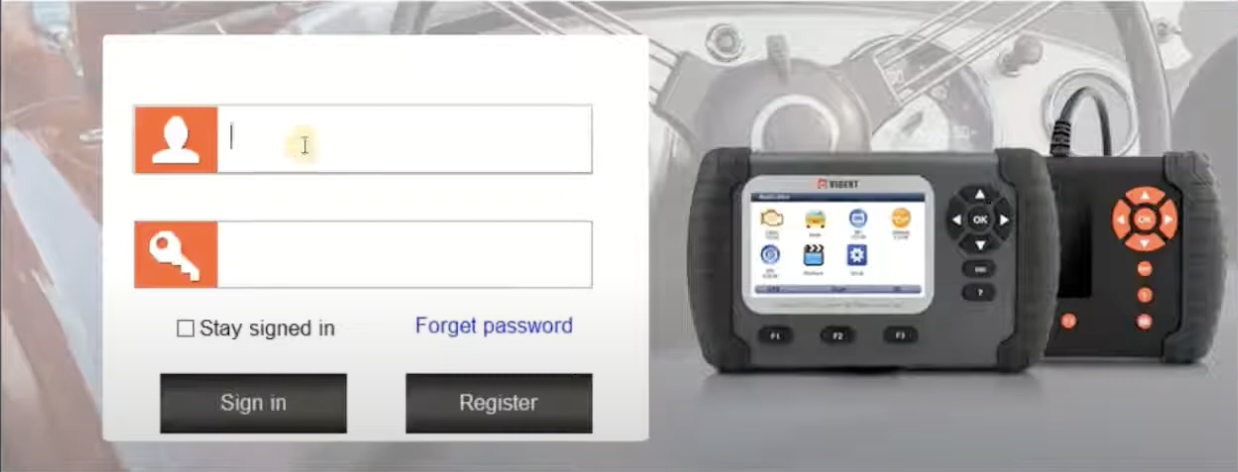
Once installed, open iScanZilla. You’ll land on the login screen — click Register to create your account.
Step 2: Create your Vident account
Fill in the registration form with your details and submit it. Make a note of the User ID and password you set here — you’ll need them every time you log back in.
You’ll be returned to the login screen. Log in with the User ID and password you just created.
Step 3: Register your scan tool
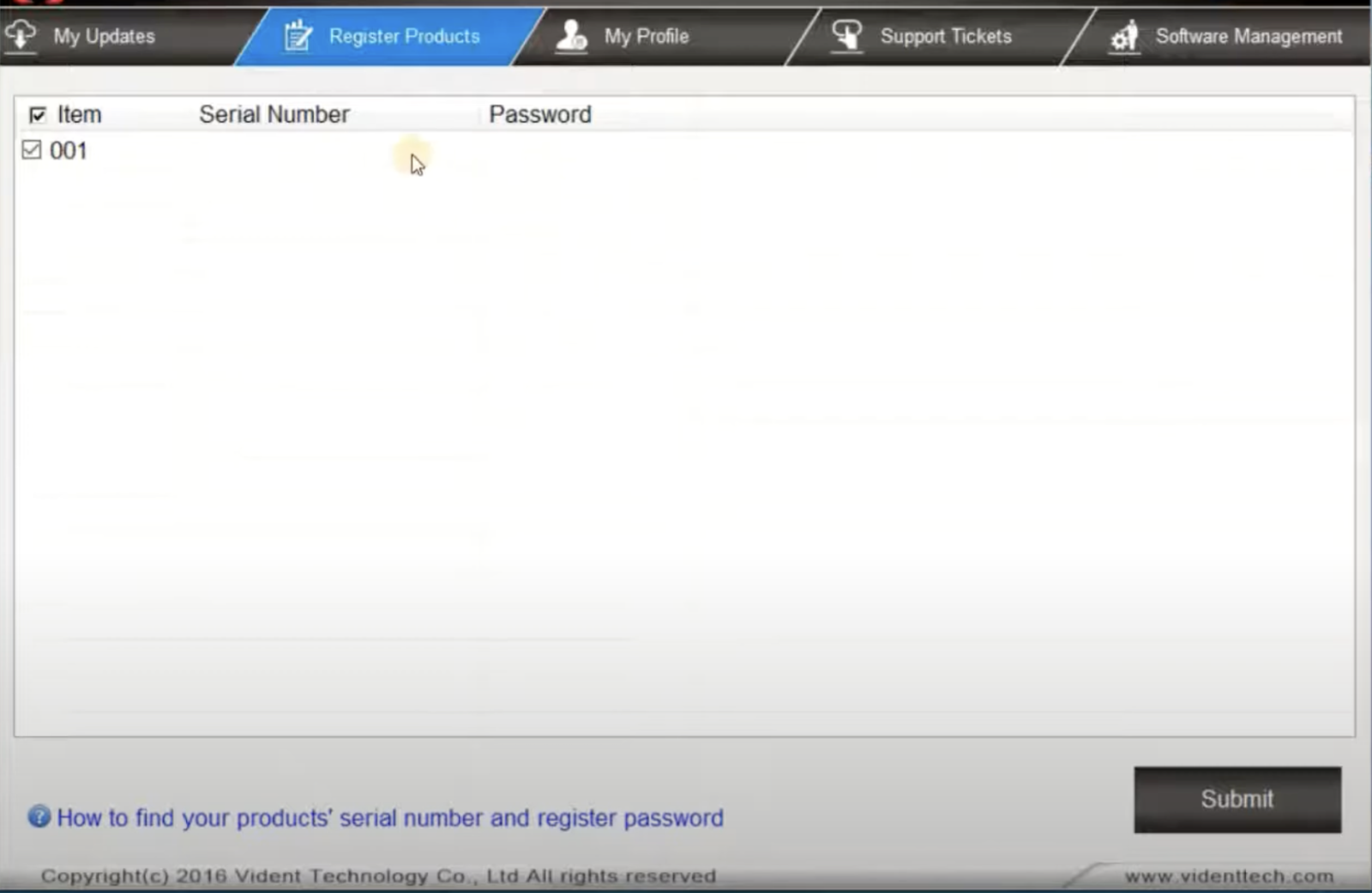
Go to the Register Products tab, enter the scan tool’s serial number and password (on the slip inside the box), and submit.
Step 4: Get your vehicle software
If your unit came pre-loaded (Toyota, Holden, or Ford AU): you’re done — your software is already installed and ready to use. There’s nothing further you need to do.
If your unit is blank: go to the Software Management tab, choose your first vehicle brand from the available list, and download it — this first one is free.
Step 5: Add more vehicle brands (optional, any time)
Want to cover more than one make? Once your tool is registered, you can add additional vehicle brands whenever you like:
- In iScanZilla, go to the Software Management tab and select the make you want to add
- Or purchase directly from our website
Need a hand?
Our team’s available Monday–Friday, 9am–5pm AEST on (03) 8658 8894, or you can reach us through our contact form. You might also find our Vident iLink400AU FAQs useful for common questions.