How To Setup Your Vident iLink400MAX
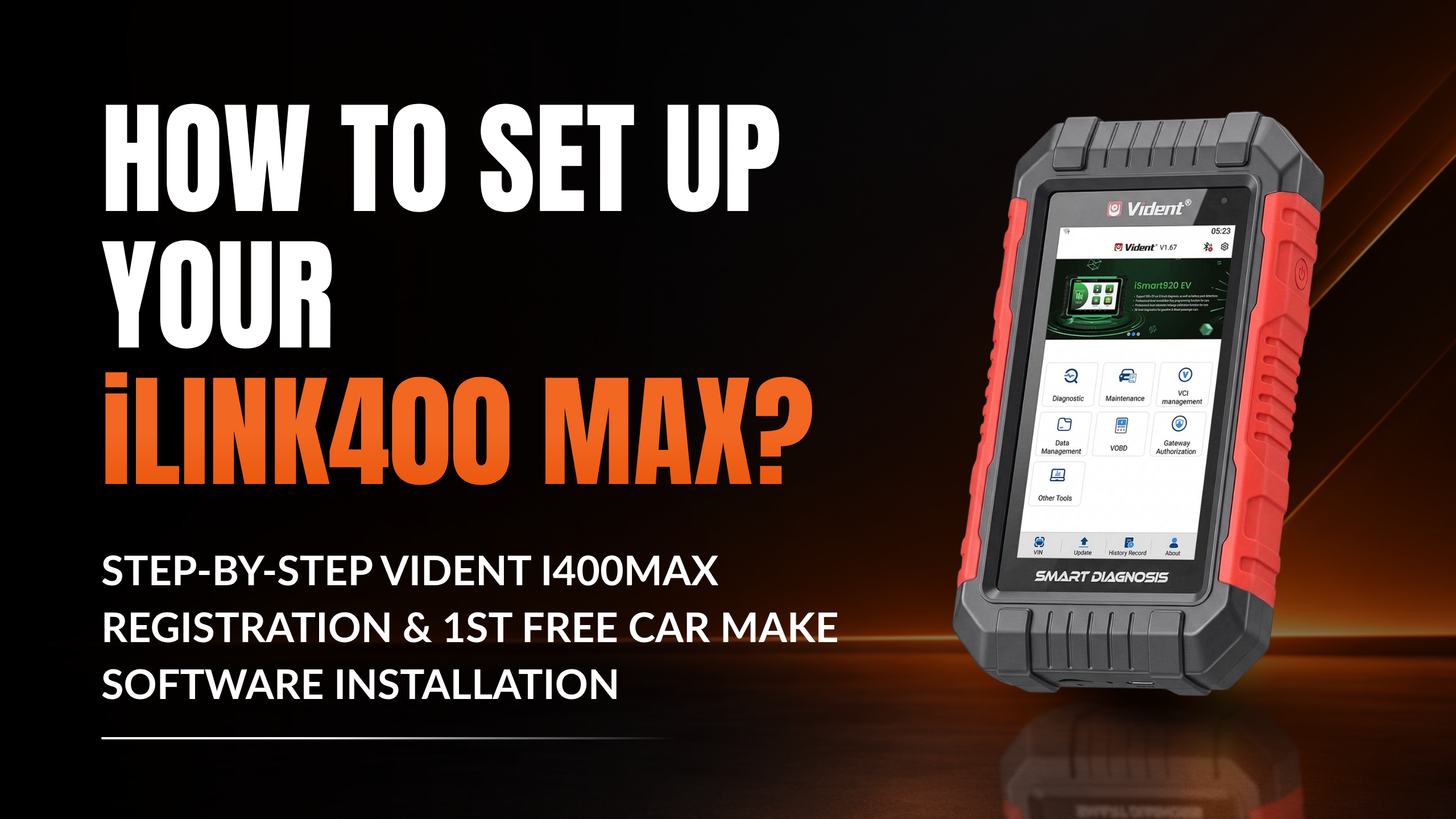
The Vident iLink400 Max registers directly on the scan tool. Unlike the older iLink400AU, there is no SD card, card reader or iScanZilla software to install on a computer. All you need is a Wi-Fi connection and an email address, and the whole process takes about five minutes.
What you'll do
- Turn the scan tool on and connect it to Wi-Fi
- Register the scan tool with your email address and a password
- Download and install your 1 free car make software
- Open the car make software and start diagnosing
Before you start: have your Wi-Fi password handy and charge the scan tool. Choose your free car make carefully. Once you confirm it, it can't be changed, and further makes are purchased separately.
Step 1: Turn the scan tool on and connect to Wi-Fi
- Press and hold the power button to turn on the scan tool.
- The Vident app starts automatically. Tap Update in the lower-left corner of the home screen.
- Tap Turn on network, select your Wi-Fi network and enter the password to connect.
Step 2: Register the scan tool
- Once connected to Wi-Fi, tap Update at the bottom of the screen again. The Sign in screen appears. Tap Register.
- Your scan tool's serial number is filled in automatically at the top of the screen.
- Enter your email, create a password, select your software language, then tap Submit.
Keep a note of your email and password. You'll need them to sign in again later.
Step 3: Download and install your free car make software
- After registering, the Update screen lists every available car make. A message explains that the iLink400 Max includes 1 car make during the free update period. Tap OK.
- Find your car make and tap its Download icon.
- Confirm your choice when asked "Are you sure to select this brand to upgrade?" by tapping OK. The software downloads and installs.
Pending updates: while your first car make software downloads, you may be asked to install other updates, such as OS, OBD or Update Tool updates. Download and install these as well. If asked "Do you want to install an update to this built-in application?", tap Install. Your existing data is not affected.
Step 4: Open and use the car make software
- Once downloaded, your car make software appears under the Diagnostics tab, alongside the generic OBDII software.
- Plug the scan tool into the vehicle's OBD port and turn the ignition on.
- Tap the vehicle software icon, for example Holden, and follow the on-screen options to get started.
Step by step guide: video version
Prefer to watch? Follow the full registration process in our video guide:
Vident iLink400 Max FAQs
I didn't select my car make software at checkout. How do I select it or notify you?
You don't need to select your car make software at checkout or notify us of your choice.
The iLink400 Max comes with no car make software installed. During registration, you will be given the option to choose and download one free car make software of your choice.
How do I register the iLink400 Max and install my first free car make software?
Registration and software installation are completed on the iLink400 Max Android tablet. Connect the scan tool to Wi-Fi and enter your email address during registration.
- Turn on the scan tool and connect it to Wi-Fi.
- Register the scan tool using your email address.
- Choose your first free car make software.
- Download and install the software on the scan tool.
For instructions, watch the step-by-step registration and software installation guide.
Is the iLink400 Max software identical to the iLink400 AU software?
Yes. For car makes available on both tools, the vehicle software is identical.
For example, the Holden software on the iLink400 AU and the iLink400 Max is identical. The same applies to Toyota, Ford and other car makes available on both models.
Vehicle coverage and functions depend on the vehicle's make, model, year and systems.
What is the difference between the iLink400 AU and the iLink400 Max?
The iLink400 Max is the newer model. It has:
- A 5-inch colour touchscreen and Android operating system.
- Wi-Fi for registration, software downloads and updates.
- A Bluetooth dongle for wireless connection to the vehicle.
- More car make software options, including Mitsubishi, Nissan, Suzuki and Isuzu.
Both tools can have additional car make software added for a fee. The iLink400 Max offers more makes to choose from.
Can I add more car makes to the iLink400 Max?
Yes. You can purchase additional car make software for the same scan tool.
To purchase software through the scan tool:
- Connect the scan tool to Wi-Fi.
- Open the Update section.
- Select the car make software you want to add.
- Complete the purchase, then download and install the software.
Additional software costs USD $60 per software option when purchased through the scan tool, or AUD $100 through AZscanners. Prices may change.
Some software options include more than one vehicle make. Check the makes included in the software option before purchasing.
You can also purchase through the AZscanners additional software service. Provide your scan tool's serial number and the car make when ordering. Please allow 1–2 business days for activation and confirmation.
How long are software updates included?
The iLink400 Max includes three years of free software updates. Updates can be downloaded through the scan tool using Wi-Fi.
Will the scan tool stop working after three years?
No. Software updates are optional. After the free update period ends, the scan tool will continue to work with the software already installed.
You may choose to renew updates if you need newer vehicle coverage or software changes.
How much does it cost to renew software updates?
After the three-year free update period, another year of updates can be purchased through the scan tool for USD $55. Connect the tool to Wi-Fi and check the price shown before purchasing.
Still stuck? Contact the AZscanners team with your scan tool's serial number and we'll help you get set up.